Technical SEO Checklist 2026: Complete Guide
By Devon Marsh · 2026-10-17T23:10:39.019+00:00 · 10 min read

Table of contents
A slow or broken site can hide great content from Google. That's why you need a Technical SEO checklist 2026 that matches how search works today. This guide explains each check in plain English. You'll learn what to test, how to test it, and what to fix first. Follow the steps in order. You'll cover crawling, indexing, speed, security, and AI search readiness.
What Is Technical SEO and Why Does It Matter?
Technical SEO is the work of helping search engines find, read, and store your pages. It covers your server, your code, your site structure, and your page speed. Content tells Google what a page says. Your technical setup decides whether Google can reach that page at all.
Think of your site as a shop. Great products don't help if the door is locked. This work unlocks the door and adds clear signs.
AI answer tools need the same access. Google AI Overviews, ChatGPT, Gemini, and Perplexity can't use a page they can't reach.
Which Checks Should You Do First?
Fix anything that blocks Google completely before you tune anything else. Work in this order:
Crawl access: Can Google reach your pages?
Indexing: Are your key pages stored in Google's index?
Duplicates: Does each page have one clear main address?
Server responses: Does each URL return the right code?
Page experience: Are speed, mobile layout, and security fine?
AI readiness: Can machines understand your content?
A blocked page can't rank, even if it loads in one second. That's why access comes first.
Step 1: Make Sure Google Can Crawl Your Site
Googlebot crawls your site to discover pages. The bot follows links, reads your sitemap, and fetches each URL it finds. If it can't reach a page, that page can't show up in search.

Review Your Robots.txt File
Your robots.txt file lives at yourdomain.com/robots.txt. It tells bots which areas to skip. Open it and look for one big mistake: a rule that blocks the whole site. This often happens when a staging site goes live with its old settings.
Block only low-value areas, such as cart pages, login pages, and internal search results. Remember, robots.txt controls crawling, not indexing. A blocked page can still appear in results if other sites link to it.
Build and Submit an XML Sitemap
An XML sitemap is a list of URLs you want Google to index. List only live pages that return a 200 response. Leave out redirects, error pages, and duplicates. One sitemap file can hold up to 50,000 URLs or 50 MB uncompressed. Submit it in Google Search Console, and add its address to your robots.txt file.
Watch Your HTML File Size
Many guides skip this one. Google's crawler documentation says Googlebot fetches only the first 2 MB of a supported file type. The limit applies to the uncompressed file. Google doesn't use anything after the cutoff for indexing.
Most pages sit far below that. But pages full of inline scripts, inline styles, or embedded images can get close. Move heavy code into separate files. Keep your title, canonical link, and key content near the top.
Fix Orphan Pages
Google finds most pages through links. An orphan page has no internal links pointing to it. Compare your sitemap with a full site crawl to find them. Then link to each one from a related page.
What about crawl budget? That's how many URLs Google fetches from your site in a set time. It mostly matters for very large sites. Small sites should focus on clean links and a fast server.
Step 2: Make Sure Your Pages Get Indexed
Indexing means Google has stored your page and can show it in results. Crawled doesn't mean indexed. Google may visit a page and still skip it. Thin, duplicate, or noindexed pages often get skipped.
Check Pages in Search Console
The URL Inspection tool shows what Google knows about one page. Paste a full URL into the bar at the top of Search Console. The report shows whether the page is on Google. It also lists the last crawl date and the main URL Google chose.
By default, you see the last indexed copy, not the live page. Click "Test Live URL" to see the current version. After a fix, click "Request Indexing" to ask for a recrawl. You can only inspect pages in a property you've verified.
Here's an example. You update a service page, but search still shows the old title. Inspect the URL. If the last crawl is weeks old, request indexing.
Use Noindex the Right Way
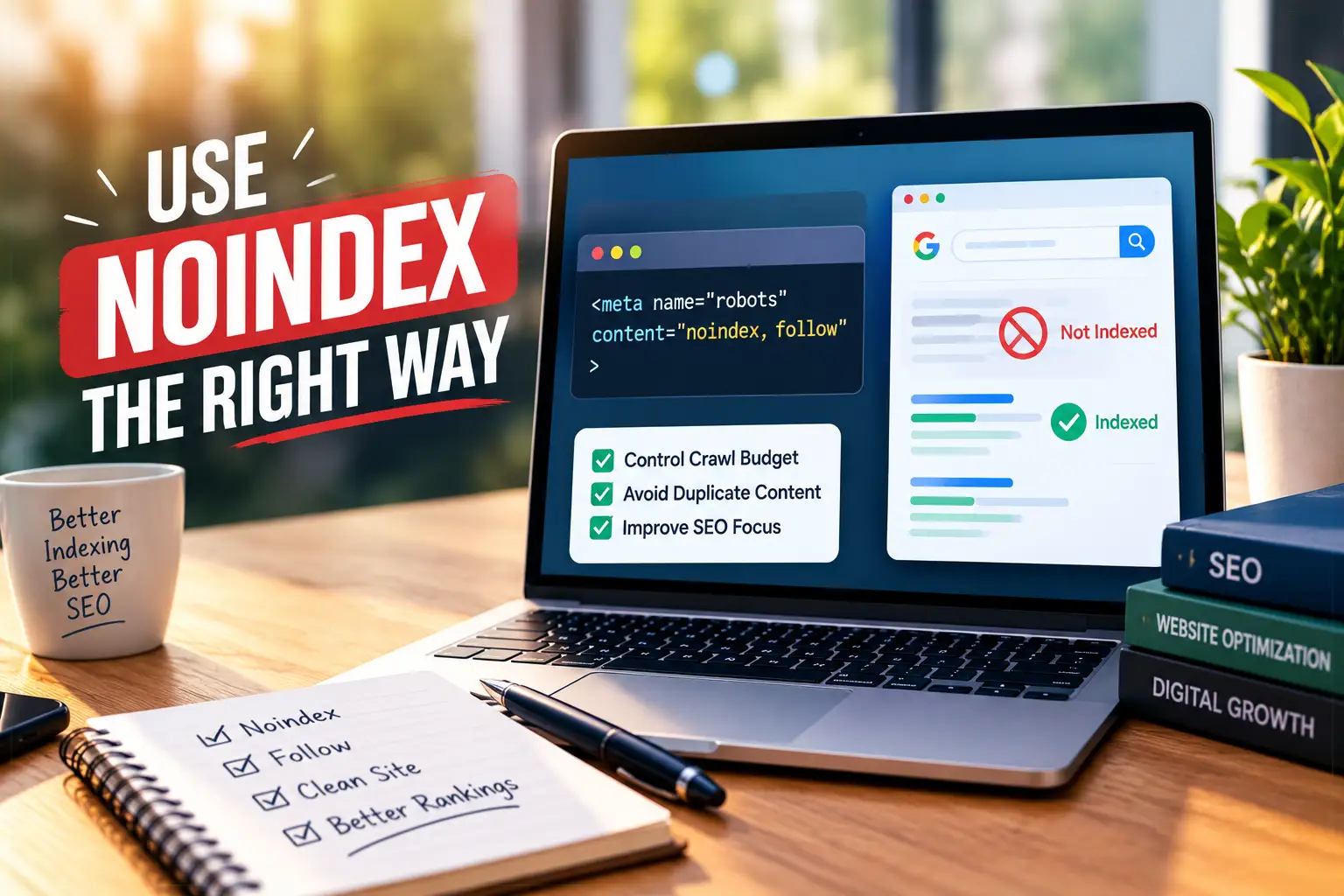
To keep a page out of search, add a noindex rule to that page. Google must crawl the page to see the rule. So don't also block it in robots.txt. That mix-up is common, and it can leave the page stuck in results.
Step 3: Clean Up Duplicate URLs
One page can load at many addresses. Think http and https, www and non-www, or links with tracking parameters. Google groups similar URLs and picks one main version. You can guide that choice with canonical tags, which are short lines of code in your page head. Each one points to your preferred address.
Follow these rules:
Use full URLs, including https and the domain.
Add one canonical link per page.
Point to a live page that returns a 200 code.
Let unique pages point to themselves.
Redirect old duplicates with a 301.
Treat a canonical link as a strong hint, not a command. Google can choose another main URL if your signals conflict. Check its choice in the inspection report. If it differs from yours, look at your sitemap, internal links, and redirects. One of them may point to another version.
Step 4: Check How Your Server Responds
HTTP status codes are short numbers a server sends with every response. They tell Google if a page is fine, moved, or gone. A wrong code can drop a good page from search.
Code | Meaning | What to do |
200 | Page works | Use for live pages you want indexed |
301 | Moved permanently | Use for permanent moves. It's a strong signal for the new URL |
302 | Temporary move | Use for short-term changes. It's a weaker signal |
404 | Not found | Fine for deleted pages with no replacement |
410 | Gone | Use when you removed a page on purpose |
503 | Service unavailable | Use during planned downtime. It signals a temporary problem |
Google treats a 308 like a 301, and a 307 like a 302. Watch for these problems:
Soft 404s: The page says "not found" but returns a 200 code. Return a real 404 or 410 instead.
Redirect chains: If A goes to B and B goes to C, send A straight to C.
Server and DNS errors: Google handles timeouts and DNS failures like 5xx errors. Weak hosting can hurt crawling.
Step 5: Pass Core Web Vitals
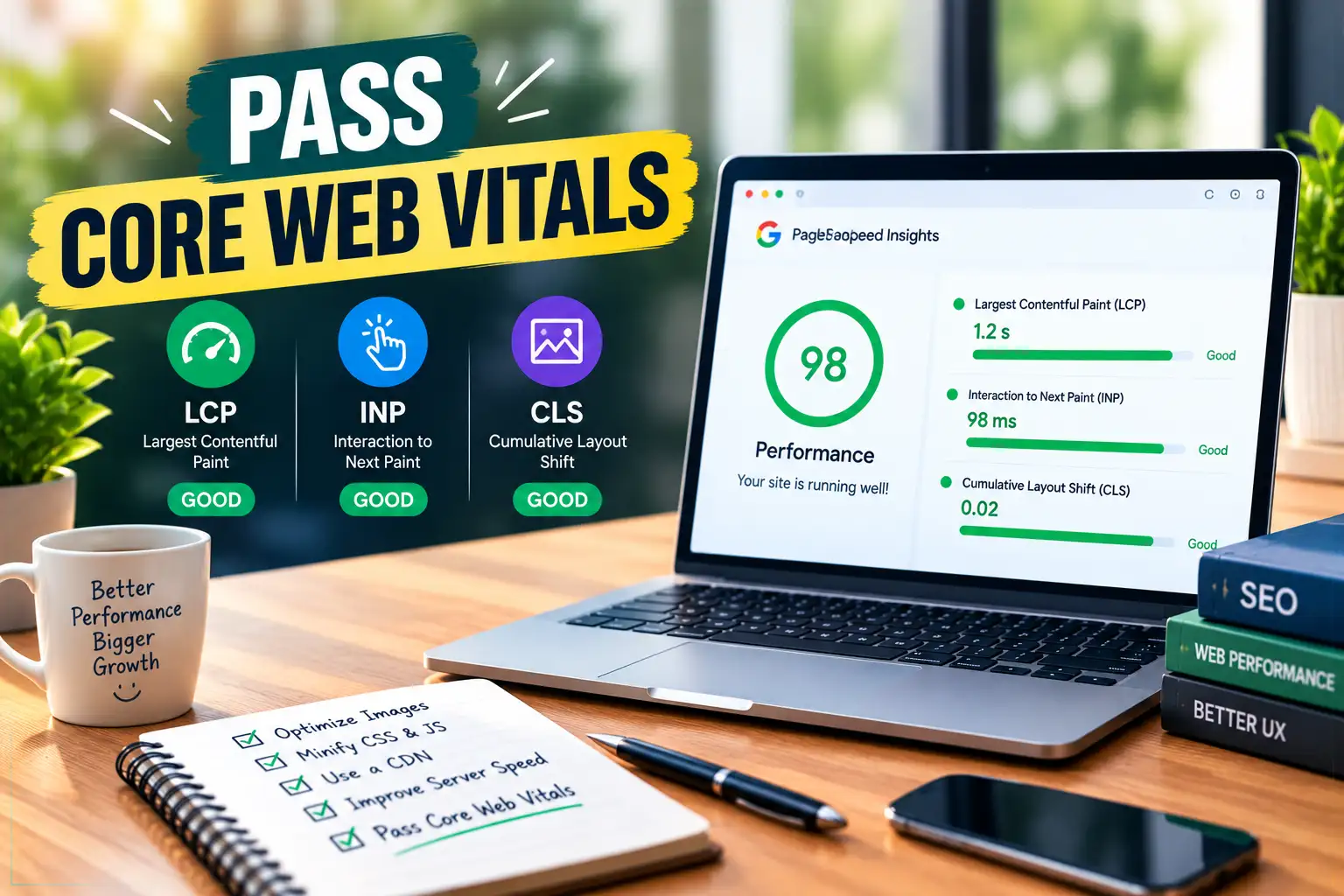
Core Web Vitals are three scores that measure real visitor experience. Google checks them at the 75th percentile of real visits.
LCP (loading): 2.5 seconds or less is good.
INP (responsiveness): 200 milliseconds or less is good.
CLS (visual stability): 0.1 or less is good.
INP replaced FID in March 2024. Guides that still list FID are out of date. A page also needs all three scores to pass. Fast loading won't save a page with a CLS of 0.3.
Check scores in the Search Console report and PageSpeed Insights. Then try these fixes:
LCP: Resize and compress the main image. Don't lazy-load it.
INP: Remove unused scripts. Delay chat widgets and ad tags.
CLS: Set width and height on images and videos. Reserve space for banners.
Step 6: Review Mobile, Security, and Structured Data
Google mostly uses the mobile version of a page for indexing. Content hidden on mobile may not count. Make sure text, links, images, and markup match on both versions.
Serve every page over HTTPS. Redirect HTTP addresses with a 301. Fix mixed content, which happens when a secure page loads images or scripts over http.
Structured data is code that labels what's on a page, such as an article, product, or business. Use JSON-LD with schema.org types. Test it with Google's Rich Results Test. Mark up only content visitors can see. Markup helps machines understand a page, but it doesn't guarantee rich results.
Step 7: Get Ready for AI Search
Google says a page must be indexed and eligible for a snippet to appear as a link in AI Overviews or AI Mode. It also says no extra files or special markup are needed. So the earlier steps already cover most of this.
Other AI tools work differently. Each company uses its own crawler names, and those names change. Check each company's official documentation before you allow or block a bot. Make sure a broad rule doesn't block one by accident.
Then make your answers easy to extract:
Put the direct answer in the first two sentences under each heading.
Use clear headings, short lists, and simple tables.
Keep key text in the HTML, not only in late-loading scripts.
Name your business, service, and topic clearly.
Common Mistakes to Avoid
Leaving "Disallow: /" in robots.txt after launch.
Blocking a page in robots.txt and expecting it to leave search.
Listing redirected or broken URLs in your sitemap.
Pointing canonical links at pages that redirect or return errors.
Using a 302 for a permanent move.
Testing speed only on a fast office computer. Real visitors often use slower phones.
Practical Tips for Ongoing Care
Technical SEO best practices work as a habit, not a one-time job. Use this routine:
Weekly: Check Search Console for new crawl and indexing errors.
Monthly: Crawl your site. Fix broken links and redirect chains.
After any redesign: Inspect key pages, test redirects, and recheck robots.txt.
Every quarter: Review Core Web Vitals and your sitemap.
Keep a simple log with the date, the change, and the result. It helps you spot technical SEO issues early and shows which fixes worked.
FAQs
Why Is My Page Not Showing on Google?
The page may be blocked, noindexed, or not discovered yet. It may also be a duplicate or too thin. Inspect the URL in Search Console first. The report usually names the reason.
How Long Does a Technical Audit Take?
A small site often takes a few hours to a day. Larger sites take longer. Most of the time goes to fixing problems, not finding them.
Do I Need a Developer for These Fixes?
Not always. You can check sitemaps, indexing, and robots.txt yourself. On WordPress, plugins can handle sitemaps and redirects. Server settings, scripts, and templates usually need a developer.
Is a 301 or 302 Redirect Better?
Use a 301 for permanent moves and a 302 for short-term ones. Google reads a 301 as a stronger sign that the new URL should be the main one. The wrong choice can send mixed signals.
Do Core Web Vitals Affect Rankings?
Google says good scores align with what its ranking systems reward. But they won't rescue weak content. Treat them as one signal among many, and as a way to keep visitors happy.


Comments 0
No comments yet. Start the conversation.