How to Fix Crawl Errors and Indexing Issues in Google Search Console
By Devon Marsh · 2026-10-24T20:11:44.705+00:00 · 11 min read

Table of contents
Fix problems in this order. Start with the server and robots.txt blocks. Then fix broken pages. Thin content comes last. After each fix, test the page with URL Inspection and give Google time to come back. Some excluded pages are fine, so don't try to reach zero.
You hit publish. A few days pass. Your page still isn't in Google. Annoying, right? The cause is often simple, and free tools can fix it. This guide shows you how to fix crawl errors and indexing problems, one step at a time. We'll look at where problems show up, what the labels mean, and what to fix first.
What's the Difference Between Crawling and Indexing?
Crawling and indexing are two different steps. Crawling is when Googlebot, Google's visiting robot, opens your page and reads it. Indexing is when Google saves the page so it can show up in results. A page can pass step one and fail step two. So your fix depends on where it got stuck.
Stage | What it means | Usual cause |
Crawl error | Googlebot couldn't open the page | Server, DNS, or robots.txt block |
Discovered, not visited | Google knows the URL but hasn't gone yet | Slow server or low priority |
Visited, not saved | Google read it and left it out | Thin or copied content |
Indexed | Google saved it and may show it | It passed Google's checks |
Find the stuck step first. Then change things.
Where Do Crawl and Indexing Problems Show Up in Search Console?
Most Search Console indexing issues appear in three places: the Indexing report, the Crawl Stats report, and URL Inspection. The indexing report lists problems page by page. Crawl Stats shows how healthy your site looks to Googlebot. URL Inspection checks one address at a time. Use all three. Each one catches things the others miss.
How Do You Read the Indexing Report?
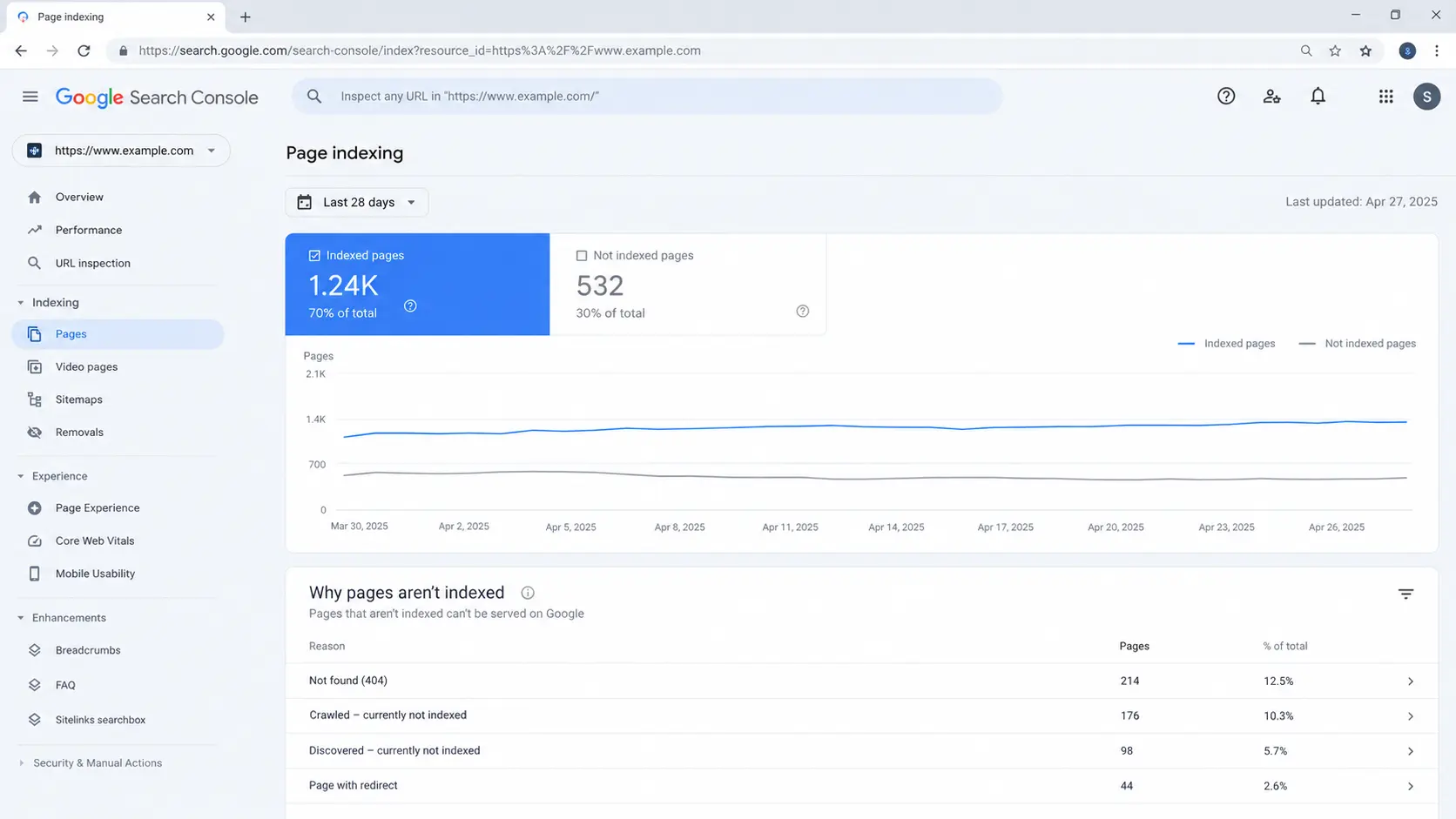
Google calls it the page indexing report. Open Indexing, then Pages. You'll see two groups: indexed and not indexed. Below that sits a table called "Why pages aren't indexed." Each reason has a count. Click a row, and you'll see the pages behind it.
A big number isn't always bad. Redirects, noindexed pages, and duplicates belong on that list. You put them there on purpose.
How Do You Use Crawl Stats and URL Inspection?
Go to Settings, then Crawl stats. This shows site-wide health. Look at host status. It checks three things: robots.txt fetching, DNS, and server connection. If it's red, Googlebot had trouble reaching your site.
For one page, paste the address into the bar at the top. You'll see the last crawl date, the canonical page Google picked, and the indexing result. A canonical page is the main version Google keeps when a few pages look alike.
How Do You Fix Server, DNS, and robots.txt Blocks?
These blocks stop Googlebot before it reads one word. So check them first. A server error means your host didn't answer. A DNS error means Google couldn't find your domain. A robots.txt block tells Google to stay out. Each has its own fix. Each can hide many pages at once.
Server and DNS Errors
Here, your host or domain setup didn't answer Googlebot. That matters because Googlebot may visit less often after many failures. Then new pages wait longer to get seen.
How to fix it:
Open Settings, then Crawl stats, and click Host status.
See which line is red: DNS resolution or server connection.
For DNS, ask your domain registrar to check your records.
For server errors, check your hosting logs, recent plugin updates, and traffic spikes.
Call your host if timeouts keep happening.
A common mistake is waiting for the error to fade on its own. It rarely does. Ask your host. To stay ahead of it, set up a free uptime alert. Then you'll hear about an outage before Google does.
robots.txt Blocks
The robots.txt file sits at the root of your site. It tells crawlers which paths to skip. One wrong line can hide a whole section from Google. Here's a small example:
User-agent: *
Disallow: /blog
Sitemap: https://www.example.com/sitemap.xml
That Disallow: /blog line blocks every address that starts with /blog. It hits /blog/ and also /blog-seo-tips. Most owners only wanted to block the folder. Add a slash at the end (/blog/), and that's exactly what you get.
To fix it, open the robots.txt report under Settings [VERIFY] and read each warning. Then edit the file. If it's urgent, ask for a recrawl of the file from that same report.
One mistake I see a lot: a "block everything" rule left over from the test site. It slips through at launch. So recheck the file after every site update.
How Do You Fix 404 and Soft 404 Pages?
A 404 means the page is gone. A soft 404 is trickier. The page looks empty or wrong, yet it tells Google all is well. Soft 404s worry me more because they confuse Google about what your site contains. For each address, you have three choices: restore it, redirect it, or leave it alone.
How to fix it:
Open the indexing report and click the "Not found (404)" row.
Check each URL. If the content moved, add a 301 redirect to the new page.
If you deleted it for good, let it return a 404 or 410. Google treats both the same.
Update any internal links that still point to dead pages.
Don't send missing pages to your homepage. Google warns that this creates soft 404s.
You can check any address from your computer's terminal:
Read the first line of the reply. HTTP/2 404 means the page is gone. HTTP/2 301 plus a Location: line means a permanent move. HTTP/2 200 on an empty page? That's a soft 404 risk.
A common mistake is redirecting every dead page to the homepage "to clean up" the report. It feels tidy. It isn't. Maintain a record of all removed content and its corresponding redirects to prevent this issue.
What Does “Crawled – Currently Not Indexed” Mean?
The crawled currently not indexed status means Googlebot visited your page and chose not to save it. That's a quality call. It's not a penalty, and nothing is broken. Pages land here when they feel thin, copy other pages, or sit deep in your site with few links pointing to them.
Cause | How to check | Fix |
Thin content | Compare with top results | Add original detail and examples |
Copied content | Check the canonical Google chose | Merge pages or set a canonical tag |
Weak internal links | Count links pointing to the page | Link from related, stronger pages |
How to fix it:
Improve the page with answers real readers want.
Add two or three internal links from related pages.
Paste the address into the inspection bar.
Use the request-indexing option.
Wait. Give Google time to look again.
Avoid clicking the request button repeatedly, as this may cause unnecessary duplicate requests.
It won't speed anything up, and single-address requests have a daily limit. The best prevention is simple: publish only pages that answer a real question.
Which Fixes Should You Do First?
Start with the biggest blocks. Website-wide issues can lead to significant traffic losses, but they’re usually easy to identify.
Quality work takes the longest, so it goes last. This order saves the most time:
Server and DNS failures. They block every page at once.
robots.txt blocks. One line can hide whole folders.
Accidental noindex tags. Quick to find, and they pay off fast.
404 and redirect cleanup. It protects pages that already earn visits.
Sitemap and internal links. They make it easier for Google to discover your most important pages.
Thin or copied pages. They take time, so they come last.
Beginner path: do steps 1 to 4 and stop there. For a more in-depth analysis, review server logs and run a comprehensive crawl using Screaming Frog.
Then compare both with what Google reports.

What Mistakes Should You Avoid?
Most mistakes start with treating every excluded page as a problem. Google expects some pages to stay out. People also change too many things at once. Then they can't tell which edit worked. And fixing symptoms instead of causes? The same error comes back later.
Chasing a zero count. Some excluded pages are healthy.
Changing everything together. Fix one issue type, wait, then measure.
Trusting your canonical tag blindly. Google may pick a different main page.
Skipping validation. Without it, you won't know the fix worked.
If your traffic dropped after a change, read our guide on how to recover lost rankings.
What Practical Tips Keep Search Console Clean?
Small habits go a long way. Check your reports every week. Fix one issue type at a time. Write down every change. These habits cost almost nothing, and they stop most surprises. Search Console's free tools do the heavy lifting if you open them often.
Submit a clean sitemap. Include only the URLs you want Google to index in your sitemap report.
Crawl your own site. The free version of Screaming Frog finds broken links before Google reports them.
Validate each fix. Fix every instance first. Afterward, open the issue’s details page and select “Validate Fix” to confirm that the problem has been resolved.
It usually takes about two weeks.
Keep a change log. Note the date, the URL, and what you edited.
Want to go deeper? Try technical SEO audits with AI tools.
Monthly and Quarterly Checklists
A short routine stops most problems from coming back. Perform the monthly checklist to quickly identify any issues.
Run the quarterly list for deeper reviews. Keep both in a shared note so your whole team does the same thing.
Monthly
Review the not-indexed table for new reasons.
Check Crawl Stats host status.
Scan new 404 addresses.
Inspect two freshly published pages.
Confirm your sitemap shows no errors.
Compare indexed totals with last month.
Record changes in your log.
Quarterly
Audit every robots.txt rule.
Crawl the whole site with Screaming Frog.
Review redirect chains.
Merge or improve thin pages.
Check canonical tags on top pages.
Test speed with PageSpeed Insights.
Remove sitemap entries you no longer want indexed.
FAQs
How long does Google take to recheck a page after a fix?
Anywhere from a few days to a few weeks. Requesting Google to crawl the page again can encourage it to revisit the updated content.
It doesn't promise fast results or a spot in search.
Are 404 errors bad for SEO?
Usually not. Google says a normal 404 doesn't hurt your site's search performance. Trouble starts when important pages return 404. It also starts when many internal links point at dead addresses.
Should I use robots.txt or a noindex directive to prevent a page from appearing in search results?
Use noindex. Robots.txt stops crawling, but a blocked address can still show up if other sites link to it. Add this tag inside the page's head section:
<meta name="robots" content="noindex">
Google has to crawl the page to see that tag. So don't block the same page in robots.txt.
Why does Search Console list pages I already deleted?
Google remembers old addresses for a long time. Deleted pages should return a 404 or 410. They can sit in the report without harm. Redirect or restore them only if they had useful links or traffic.
Do I need a sitemap to get indexed?
No. A sitemap isn't required, but it helps Google find pages faster. Small sites with strong internal links often get indexed without one. Sitemaps help most on new, large, or poorly linked sites.



Comments 0
No comments yet. Start the conversation.